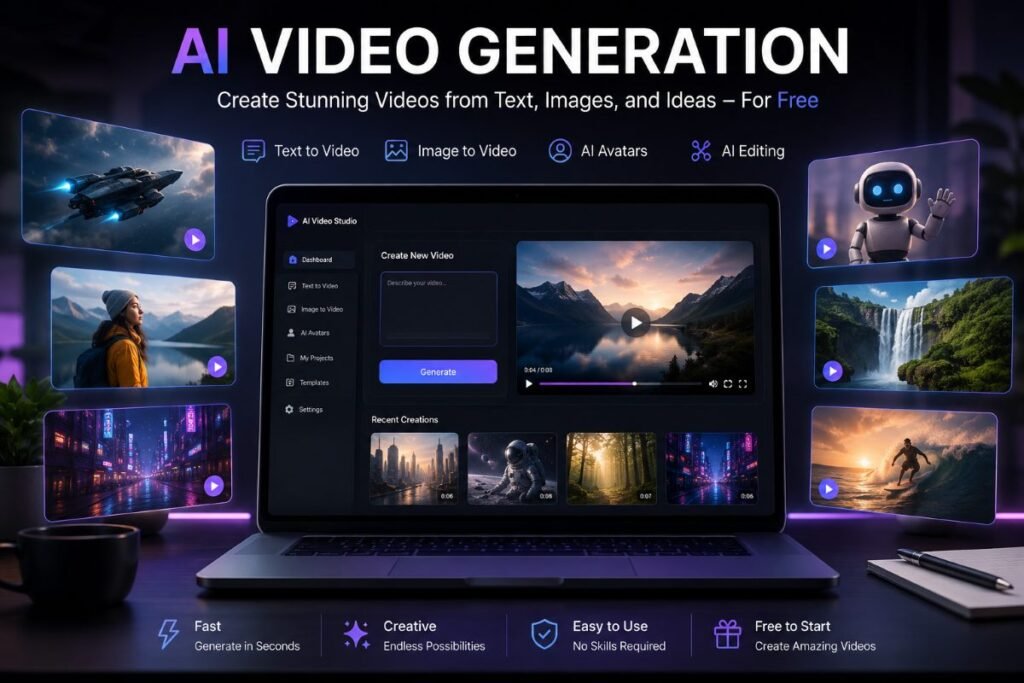
Creating videos used to take a lot of time, editing skills, and expensive software. Today, AI video generator tools make video creation much easier. You can turn a simple text idea or image into a video with just a few steps.
But finding the best free AI video generator tools is not always easy. A tool may be free but offer only limited credits, short videos, lower video quality, or a watermark. Some tools may also limit which features you can use for free.
In this guide, UseAiLearn will help you compare the best free AI video generator tools and understand what each tool is good for. You will learn which tools are best for beginners, text-to-video, image-to-video, YouTube, and social media. We will also look at important free-plan limits so you can choose the right tool for your needs.
What Is a Free AI Video Generator?
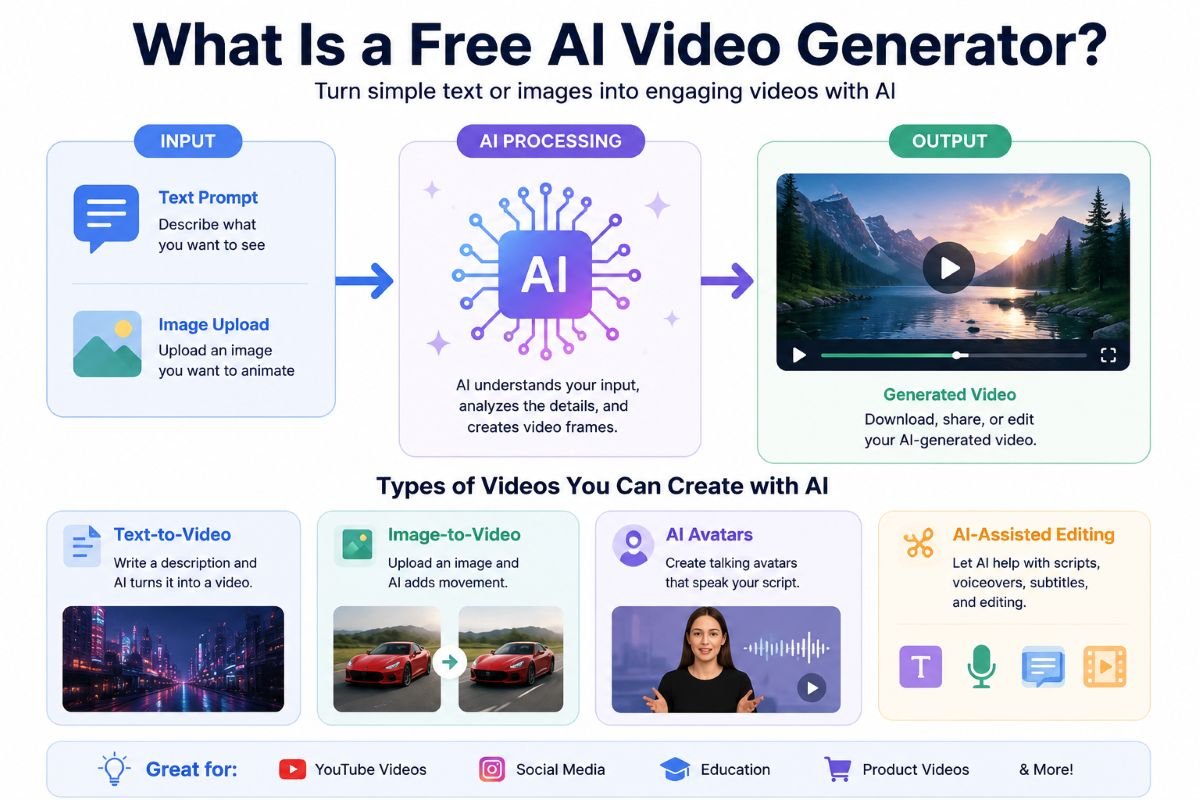
A free AI video generator is a tool that uses artificial intelligence to create videos from simple instructions. Instead of creating every scene manually, you can give the AI a text prompt, upload an image, or choose a ready-made option. The AI then creates a video based on your instructions.
For example, you can type:
“A small dog running on a green field at sunset.”
The AI can turn this idea into a short video. You do not need advanced video editing skills to get started.
AI video generators can create different types of videos, including:
- Text-to-video: You write a description, and the AI creates a video from it. For example, you can describe a city at night and ask the AI to create a cinematic video.
- Image-to-video: You upload an image, and the AI adds movement to it. For example, a photo of a car can be turned into a short video showing the car moving on a road.
- AI avatars: Some tools can create a talking person or avatar that speaks your written script. This can be useful for tutorials, presentations, and educational videos.
- AI-assisted video creation: Some tools can help with tasks such as writing a script, creating scenes, adding voiceovers, generating subtitles, or editing a video.
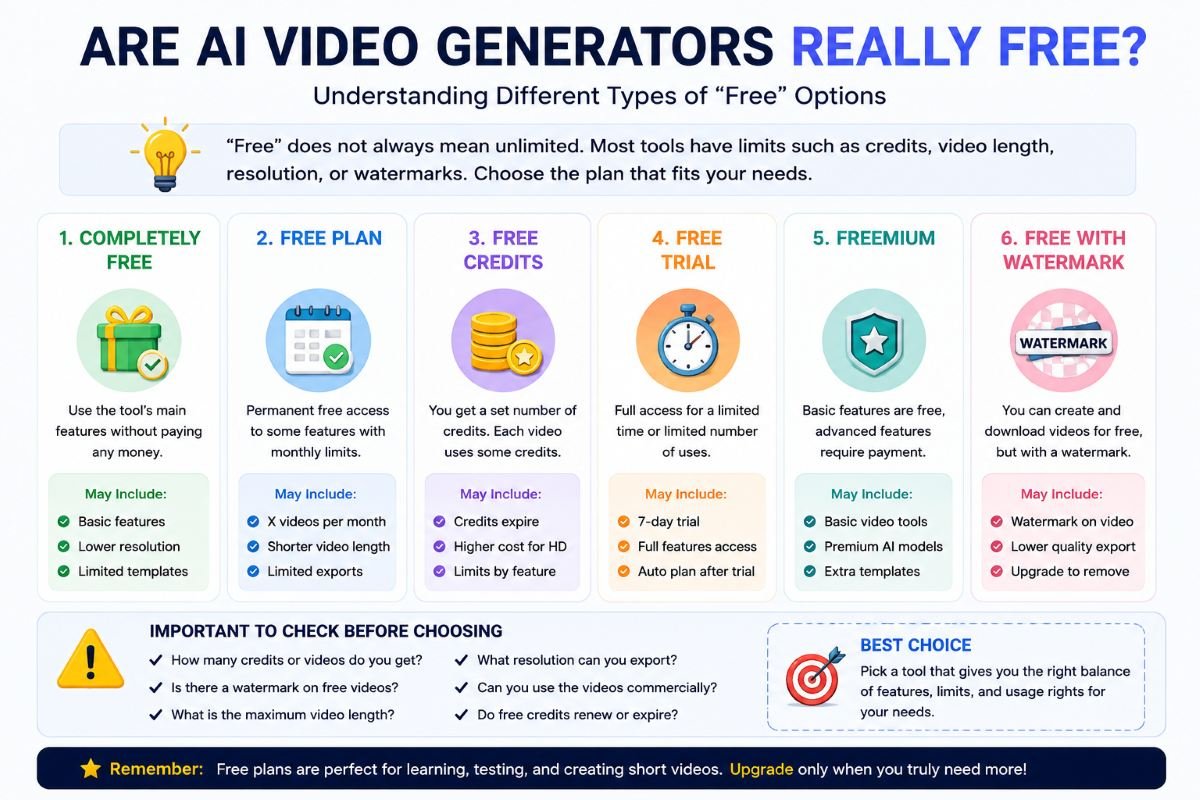
However, “free” does not always mean unlimited. A free AI video generator may give you a limited number of credits, shorter videos, lower resolution, or videos with a watermark. That is why it is important to check the free plan before choosing a tool.
How Does an AI Video Generator Work?
Most AI video generators follow a simple process:
1. Enter a prompt or upload an image
First, you describe what you want or upload an image. Your instructions are called a prompt.
2. AI understands your instructions
The AI analyzes your prompt or image and identifies details such as the subject, action, setting, and visual style.
3. AI generates the video
The tool creates video frames based on the information you provided. This may take a few seconds or minutes, depending on the tool and the type of video.
4. Review the result
Watch the generated video and check if it matches your idea. Sometimes you may need to change your prompt and generate it again.
5. Edit or download the video
If the result looks good, you can download it. Some tools also let you edit the video, add music, text, subtitles, or other elements before exporting it.
For example, if you want a short video for YouTube, you could write a prompt such as:
“Create a 10-second video of a modern laptop on a clean desk, with soft lighting and a slow camera movement.”
The AI will use this description to create a video that matches the requested scene as closely as possible.
Are AI Video Generators Really Free?
The word “free” can be confusing when you are choosing an AI video generator. Some tools let you create videos without paying, but they may have limits. Others offer free credits for a short time or add a watermark to your videos.
Before choosing a tool, it helps to understand what its free option really includes.
Completely Free
A completely free tool lets you use its main video creation features without paying. However, it may still have some limits, such as fewer features or lower video quality.
For example, a tool may let you create basic videos for free but require payment for advanced effects or higher resolution.
Free Plan
A free plan usually gives you permanent access to some features without a monthly payment. However, the free plan may have limits.
For example, a tool might let you create a few short videos each month while keeping longer videos and advanced features for paid users.
Free Credits
Some AI video generators give users a certain number of free credits. Each video generation uses some of those credits.
For example, if a tool gives you 100 free credits and one video costs 20 credits, you may be able to generate about five videos before your credits run out.
The number of credits used can also depend on the video length, quality, or feature you choose.
Free Trial
A free trial gives you access to a tool for a limited time or limited number of uses. After the trial ends, you may need to pay to continue using certain features.
For example, a tool may allow you to test its premium video features for seven days and then ask you to choose a paid plan.
Freemium
Freemium means the tool has both free and paid features. You can use some basic features for free, while more advanced options require payment.
For example, you may be able to create short videos for free but need a paid plan for longer videos, higher resolution, or more AI credits.
Free With a Watermark
Some tools allow free video generation but place their logo or watermark on the final video.
For example, you may create a video without paying, but the downloaded video could show the tool’s name or logo.
This may be fine for testing an idea, but it may not look professional for a business, YouTube channel, or client project.
What Should You Check Before Using a Free AI Video Generator?
Do not choose a tool only because its website says “Free.” Check what you actually get with the free option.
Look for:
- How many free credits you receive
- How often the credits are renewed
- Maximum video length
- Video resolution
- Watermark rules
- Available features
- Download options
- Whether commercial use is allowed
- What happens when your free credits run out
For example, Tool A may give you many free credits but add a watermark, while Tool B may offer fewer credits but allow cleaner exports. The better choice depends on what you want to create.
So, when comparing the best free AI video generator tools, always look beyond the word “free.” Check the actual limits and choose the tool that gives you the features you need without unexpected restrictions.
Best Free AI Video Generator Tools
Now that we know what “free” can mean, it is time to compare some of the most useful free AI video generator tools available today. Each tool has different strengths, so the best choice depends on the type of video you want to create.
We will look at what each tool does, what you can get for free, its main features, who it is best for, and its important limitations. Free plans can change over time, so always check the tool’s current pricing and usage rules before starting an important project.
1. Kling AI — Best for Cinematic AI Videos
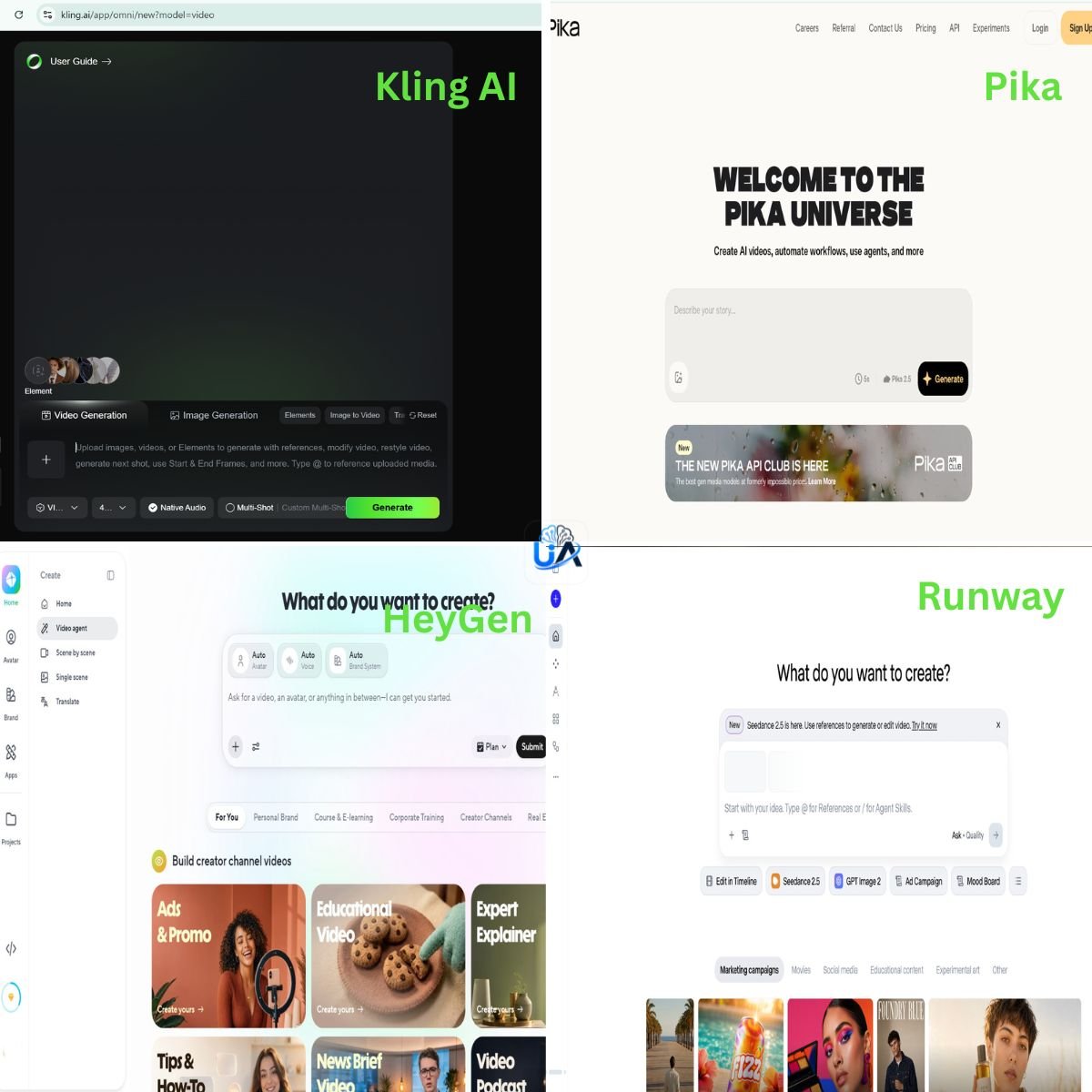
Kling AI is an AI video generator designed for creating realistic and cinematic videos from text and images. It is especially useful when you want detailed motion, realistic scenes, or consistent characters.
What it does:
You can describe a scene with text or provide an image and ask Kling AI to animate it. For example, you could create a scene of a person walking through a busy city or animate a product image with camera movement.
Free plan:
Kling AI offers a free tier with limited credits. Free generations can include a watermark, while paid memberships provide more credits and watermark-free output.
Key features:
- Text-to-video
- Image-to-video
- Character and subject consistency
- Cinematic motion
- Multi-shot video creation on supported models
- Native audio on supported models
Best for:
Creators who want cinematic-looking scenes, realistic motion, and more control over AI-generated video.
Pros:
- Good visual quality
- Strong motion generation
- Useful for creative storytelling
- Supports both text and image inputs
Cons:
- Free usage is limited
- Free output can include a watermark
- Some advanced features require a paid plan
Our verdict:
Kling AI is a strong choice for creators who want to experiment with realistic and cinematic AI videos without starting with expensive software.
2. PixVerse — Best for Creative and Social Media Videos
PixVerse is an AI video creation platform that supports text-to-video and image-to-video generation. It is useful for creating short, creative clips for social media and other visual projects.
What it does:
You can enter a text description or upload an image and use AI to create an animated video.
For example, you could upload a photo of a product and ask PixVerse to create a short promotional scene with camera movement.
Free plan:
PixVerse provides free access with credits, although the exact amount and usage can depend on the current plan or promotion. Its video generation system uses credits based on the model, resolution, duration, and other settings.
Key features:
- Text-to-video
- Image-to-video
- Reference-based video generation
- Creative effects and templates
- Different video resolutions and models
Best for:
Social media creators and beginners who want to experiment with short and creative AI videos.
Pros:
- Easy to experiment with
- Supports text and image inputs
- Good selection of creative features
- Useful for short-form content
Cons:
- Free credits are limited
- Higher-quality generations can use more credits
- Free-plan rules may change
Our verdict:
PixVerse is worth trying if you want to create short AI clips for social media, experiments, or creative projects.
3. Pika — Best for Fun and Creative AI Effects
Pika is an AI video creation tool focused on creative video effects and short AI-generated clips. It can be useful when you want to turn simple ideas or images into fun visual content.
What it does:
Pika can create and transform short videos using text, images, and creative effects.
For example, you can upload an image and use an effect to make the subject move or transform in a creative way.
Free plan:
Pika’s current Free plan includes 80 monthly video credits. It provides access to Pika 2.5 at 480p and selected tools such as Pikascenes, Pikadditions, Pikaswaps, Pikatwists, and image-to-video features. Free downloads are listed as having no watermark, and commercial use is included in the plan.
Key features:
- Text-to-video
- Image-to-video
- Creative AI effects
- Image transformation
- Short video generation
- Pika 2.5
Best for:
Beginners, social media creators, and users who want to experiment with fun AI video effects.
Pros:
- Easy to explore
- Creative effects
- Free plan includes useful features
- Free downloads without a watermark according to its current pricing page
Cons:
- Free credits are limited
- Free video resolution is limited on some features
- Longer or higher-resolution generations may require more credits or a paid plan
Our verdict:
Pika is a good option when your goal is to create short, creative, and attention-grabbing AI videos rather than long videos.
4. Vidu AI — Best for Text-to-Video and Image-to-Video
Vidu AI is an AI video generator that supports text-to-video, image-to-video, and reference-to-video generation.
What it does:
You can describe a scene, upload an image, or provide visual references and let Vidu create a short video.
For example, you can upload an image of a character and use a prompt to show that character walking, dancing, or moving through a scene.
Free plan:
Vidu currently provides free access with trial credits, and its website says users can receive free credits through sign-up and daily login. Vidu also promotes free generation in off-peak mode, so the exact free access can depend on the current system and account.
Key features:
- Text-to-video
- Image-to-video
- Reference-to-video
- Character and subject consistency
- Animation styles
- AI sound effects on supported features
Best for:
Creators who want fast short videos, character animation, or image-to-video generation.
Pros:
- Supports several video generation methods
- Good for character and subject consistency
- Useful for animation-style videos
- Free access is available
Cons:
- Free access and credits can vary
- Some advanced models use more credits
- Higher-quality generations may require paid credits
Our verdict:
Vidu AI is a useful tool to test when you want to turn text or images into short videos and experiment with different visual styles.
5. Hailuo AI — Best for Realistic Short AI Clips
Hailuo AI is an AI video generator from MiniMax that can create videos from text prompts and images.
What it does:
You can describe a scene or upload an image and ask Hailuo AI to create a moving video.
For example, you can upload a product image and ask the AI to create a short scene where the camera slowly moves around the product.
Free plan:
Hailuo AI offers a free option for testing the platform. Its current terms state that free users can download videos with a watermark, while paid plans provide more credits and watermark-free downloads.
Key features:
- Text-to-video
- Image-to-video
- Realistic motion
- Creative video generation
- Multiple AI video models
Best for:
Users who want to test realistic AI-generated clips and cinematic scenes.
Pros:
- Good for short visual scenes
- Supports text and image inputs
- Easy to experiment with
- Useful for creative projects
Cons:
- Free downloads include a watermark
- Free usage is limited
- Commercial-use rules should be checked before using free outputs
Our verdict:
Hailuo AI is a good tool for testing realistic AI video generation, especially when you want to experiment with short scenes before paying for a larger plan.
6. Runway — Best for Advanced Creative Control
Runway is a well-known AI creative platform with video generation and editing features.
What it does:
Runway can generate video from images and also provides tools for editing and working with AI-generated content.
For example, you can upload an image of a landscape and use an image-to-video model to add movement to the scene.
Free plan:
Runway’s Free plan currently includes a one-time 125-credit allocation that does not expire or renew. The free tier includes access to Gen-4 Turbo for image-to-video, along with selected image, audio, and editing tools. Free-plan videos include a Runway watermark.
Key features:
- Image-to-video
- AI image generation
- AI audio tools
- Video editing
- Creative AI workflows
Best for:
Creators who want more advanced creative tools and are willing to learn a little more.
Pros:
- Strong creative workflow
- Good selection of AI tools
- Useful for professional-style projects
- Commercial rights are available for content created on Runway, including free-plan generations, according to Runway’s usage-rights policy.
Cons:
- Free credits are one-time
- Free videos have a watermark
- Some advanced models require a paid plan
Our verdict:
Runway is a good option for users who want to explore more advanced AI video creation and editing rather than using a simple one-click generator.
7. Luma Dream Machine — Best for Cinematic Experiments
Luma Dream Machine is designed for generating creative and cinematic AI video clips.
What it does:
It can turn text descriptions and images into moving scenes.
For example, you could provide an image of a mountain and describe a slow camera movement through the scene.
Free plan:
Luma offers free access for testing, but current free-tier restrictions can include limited generation, lower-quality output, and watermarks. Luma’s Free plan is for personal, non-commercial use and includes watermarks. Commercial use requires a qualifying paid plan; check the current plan terms before using the output for business or monetized work.
Key features:
- Text-to-video
- Image-to-video
- Cinematic motion
- Creative camera movement
- Prompt-based video generation
Best for:
Creators who want to experiment with cinematic scenes and visual storytelling.
Pros:
- Strong cinematic style
- Useful image-to-video workflow
- Good for creative experiments
Cons:
- Free usage is limited
- Free output can have restrictions
- Commercial-use rules depend on the plan
Our verdict:
Luma Dream Machine is worth trying if cinematic visuals are more important to you than producing a large number of videos for free.
8. CapCut AI Video — Best for Beginners and Social Media
CapCut is more than an AI video generator. It is also a full video editing platform with many AI-powered features.
What it does:
CapCut can help create and edit videos using AI features, templates, captions, voiceovers, effects, and other editing tools.
For example, you can create a short social media video, add automatic captions, add music, and edit the final result in the same workspace.
Free plan:
CapCut currently promotes its free AI video generator as available without hidden fees or watermarks. However, specific AI features and availability can vary by tool, region, and account, so it is worth checking the feature you plan to use before starting a project.
Key features:
- AI video creation
- AI effects
- Auto captions
- Text-to-speech
- Templates
- Video editing
- Social media formats
Best for:
Beginners, YouTube Shorts creators, Instagram Reels creators, and users who want AI generation plus video editing in one place.
Pros:
- Beginner-friendly
- Strong editing features
- Useful AI tools
- Good for short-form content
- Easy to customize generated videos
Cons:
- Some features may require payment
- AI features can vary by region
- It is more of an all-in-one editor than a pure text-to-video generator
Our verdict:
CapCut is one of the most practical choices for beginners who want to create, edit, caption, and publish social media videos in one tool.
9. InVideo AI — Best for Script-Based Videos
InVideo AI is designed to help users create complete videos from written instructions.
What it does:
Instead of generating only a short visual clip, InVideo AI can help turn an idea or script into a more complete video.
For example, you could describe a YouTube topic and ask the tool to create a video with scenes, narration, and other elements.
Free plan:
InVideo AI offers a free plan with limited credits. The free quota resets weekly, and the platform allows free users to create and share videos on social media.
Key features:
- AI video creation
- Script-based video generation
- AI-assisted editing
- Stock media
- Voice and narration features
- Social media video creation
Best for:
Beginners, bloggers, marketers, and YouTube creators who want to turn written ideas into complete videos.
Pros:
- Good for script-based content
- Beginner-friendly workflow
- Useful for longer content projects
- Combines AI generation and editing
Cons:
- Free credits are limited
- Credit usage depends on the features and models used
- Advanced options may require a paid plan
Our verdict:
InVideo AI is a strong option if you want AI to help turn a written idea or script into a complete video instead of generating only a short visual scene.
10. HeyGen — Best for AI Avatar Videos
HeyGen is best known for AI avatar and presenter-style videos.
What it does:
You can choose an AI avatar, write a script, and create a video where the avatar speaks your message.
For example, a teacher could create a short educational video where an AI presenter explains a topic to students.
Free plan:
HeyGen’s current Free plan allows up to 3 videos per month, with each video up to 1 minute. It also includes access to selected avatar and video-generation features. Paid plans add longer videos, higher limits, and watermark removal.
Key features:
- AI avatars
- AI voices
- Script-to-video creation
- Multiple languages
- Digital twins
- AI video generation
Best for:
Teachers, marketers, businesses, content creators, and anyone who wants a talking AI presenter.
Pros:
- Easy avatar-based video creation
- Useful for educational content
- Supports many languages
- No camera or recording setup is required
Cons:
- Free video generation is limited
- Free videos are shorter
- Some advanced features require a paid plan
Our verdict:
HeyGen is a strong choice if you want to create presenter-style videos without recording yourself on camera.
A Quick Note About Free Plans
The free plans above are useful for testing, learning, and small projects, but they are not all equally generous. Some focus on free credits, while others limit video length, resolution, models, or exports.
For example, Pika currently lists 80 monthly video credits with no-watermark downloads, while Runway provides a one-time 125-credit free allocation and adds a watermark to free-plan videos. HeyGen limits its Free plan to three videos per month, while Vidu provides free credits and additional ways to earn access.
So, there is no single tool that is best for everyone. The right choice depends on what you want to create, how often you need to generate videos, and which free-plan limits you can accept.
Best Free AI Video Generators Compared
Choosing an AI video generator can be difficult because every tool has different strengths and free-plan limits. Some are better for cinematic clips, while others are more useful for social media, AI avatars, or complete videos from a script.
The table below gives you a quick comparison. It is kept short so it is easier to read on a mobile phone.
| Tool | Best For | Free Plan Highlights |
|---|---|---|
| Kling AI | Realistic & cinematic videos | Free credits; watermark |
| PixVerse | Creative & social videos | Free credits available |
| Pika | Fun AI effects & short clips | 80 monthly credits; no watermark |
| Vidu AI | Text-to-video & image-to-video | Trial + login credits |
| Hailuo AI | Realistic short clips | Limited free use; watermark |
| Runway | Advanced workflows | 125 one-time credits; watermark |
| Luma Dream Machine | Cinematic experiments | Limited credits; watermark; personal use |
| CapCut AI | Beginners & social media | Free AI + editing features |
| InVideo AI | Script-based videos | Weekly free quota |
| HeyGen | AI avatar videos | 3 videos/month; 1-minute limit |
Free limits can change, so this table should be treated as a quick guide rather than a permanent pricing reference. For example, Pika currently lists 80 monthly video credits on its Free plan, while Runway lists a one-time 125-credit allocation. HeyGen’s Free plan currently allows up to three videos per month.
Which Tool Should You Choose?
The best tool depends on the type of video you want to make.
For example:
- Want realistic cinematic scenes? Try Kling AI or Hailuo AI.
- Want creative short clips and effects? Pika or PixVerse can be useful.
- Want to animate images? Vidu AI, Runway, or Luma Dream Machine are worth trying.
- Want to create social media videos and edit them in the same place? CapCut is a practical choice.
- Want to turn a script or idea into a complete video? InVideo AI may be more suitable.
- Want a talking AI presenter? HeyGen is designed for this type of content.
For example, a blogger creating a short product video may prefer an image-to-video tool, while a YouTube creator making a narrated educational video may get more value from a script-based platform.
Our Opinion
There is no single best free AI video generator for everyone. The right choice depends on your goal.
If you are a beginner, it is better to start with a tool that is easy to understand and gives you enough free access to practice. If you want cinematic clips, focus more on video quality and motion. For YouTube or educational content, look for tools that can help with scripts, voiceovers, and longer video workflows.
Also, do not choose a tool only because it offers the most free credits. Quality, watermark rules, video length, export options, and usage rights can be just as important.
A simple approach is to choose two or three tools from this list, create a similar test video in each one, and compare the results. This gives you a better idea of which tool actually fits your needs.
Which Free AI Video Generator Is Best for You?
There is no single best free AI video generator for everyone. The right tool depends on what you want to create. A beginner may want a simple editor, while a YouTube creator may need longer videos, voiceovers, and more editing options.
Here is a quick guide to help you choose without testing every tool.
Best for Beginners
CapCut AI is a practical choice for beginners because it combines AI features with simple video editing tools.
You can create a video, add text, captions, music, effects, and other elements in the same editor.
For example, if you have never edited a video before and want to make a simple Instagram Reel, CapCut can be easier to learn than a more advanced AI video platform.
Good choice: CapCut AI
Best for YouTube Videos
InVideo AI is a useful choice for creators who want to turn an idea or script into a more complete video.
For example, you can start with a topic such as “5 Easy AI Tools for Students” and use the tool to help create scenes, narration, and other video elements.
If you want more control over individual AI-generated scenes, you can also explore tools such as Runway or Kling AI.
Good choices: InVideo AI for script-based videos; Runway or Kling AI for creative scenes.
Best for Short-Form Videos
For Shorts, Reels, and other short videos, Pika, PixVerse, and CapCut AI are useful options.
These tools can help you create short clips, creative effects, and social-ready content.
For example, you could turn a simple product image into a short animated clip and then add text and music in CapCut.
Good choices: Pika, PixVerse, or CapCut AI
Best for Text-to-Video
If your main goal is to turn written prompts into video scenes, Kling AI, Vidu AI, and PixVerse are worth trying.
For example, you could write:
“A small boat sailing across a calm lake at sunrise, with a slow cinematic camera movement.”
The tool can use the description to create a video based on the prompt.
Good choices: Kling AI, Vidu AI, or PixVerse
Best for Image-to-Video
If you already have an image and want to add movement to it, Kling AI, Vidu AI, Runway, or Luma Dream Machine can be useful.
For example, you can upload a photo of a car and ask the AI to create a short scene showing the car moving along a road.
Good choices: Kling AI, Vidu AI, Runway, or Luma Dream Machine
Best for AI Avatars
HeyGen is a strong choice for AI avatar videos.
You can select an AI presenter, write a script, and create a video where the avatar speaks your message.
For example, a teacher can use an AI avatar to explain a short lesson without recording themselves on camera.
Good choice: HeyGen
Best for Product Videos
For product videos, Kling AI, Runway, and CapCut AI can be useful depending on what you need.
AI video generation can help turn a product image into a short visual scene. You can then use an editor such as CapCut to add a product name, price, music, or a call to action.
For example, an online store could turn a simple photo of a smartwatch into a short promotional video.
Good choices: Kling AI, Runway, or CapCut AI
Always check the current commercial-use rules before using AI-generated content in paid advertisements or client projects.
Best for Social Media Creators
CapCut AI, Pika, and PixVerse are good options for creators who focus on short-form social media content.
These tools are useful for creating attention-grabbing clips, adding effects, and preparing content for platforms such as YouTube Shorts, Instagram Reels, and TikTok.
For example, a creator could generate a short AI clip with Pika or PixVerse, then use CapCut to add captions and music.
Good choices: CapCut AI, Pika, or PixVerse
Quick Recommendation
If you are still unsure, start with the tool that matches your main goal:
- Beginner: CapCut AI
- YouTube: InVideo AI
- Short videos: Pika or PixVerse
- Text-to-video: Kling AI or Vidu AI
- Image-to-video: Kling AI, Vidu AI, or Runway
- AI avatars: HeyGen
- Product videos: Kling AI or Runway
- Social media: CapCut AI, Pika, or PixVerse
You do not need to use all of these tools. Start with one or two, create a small test project, and compare the results. This is often the easiest way to find the best free AI video generator for your own needs.
How to Choose the Best Free AI Video Generator
Choosing an AI video generator is not only about finding a tool that says “Free.” Two free tools can offer very different features and limits.
Before you choose a tool, check the points below. This can help you avoid wasting free credits or choosing a tool that does not fit your needs.
Check the Free Credit Limit
Many AI video generators use credits for video creation. Each generation can use a different number of credits depending on the model, video length, or quality.
For example, if a tool gives you 100 credits and one video uses 20 credits, you may get about five generations.
Also check whether the credits:
- Renew every day or month
- Are given only once
- Expire after a certain time
- Can be used for all video models
If you plan to create videos regularly, a tool with a useful, renewable free allowance may be a better choice.
Check for Watermarks
Some free AI video tools add their logo or watermark to generated videos.
Always check whether the free plan allows watermark-free downloads.
Check Video Resolution
Video resolution affects how clear your final video looks.
Some free plans may limit users to lower resolutions, while higher resolutions may require a paid plan.
For example, a short video for a small social media post may work well at a lower resolution. But if you want to use the video on a large screen or for a high-quality project, you may want a higher resolution.
Common resolutions include:
- 480p
- 720p
- 1080p
Do not choose a tool only because it creates beautiful videos. Check the resolution you can actually download on the free plan.
Check Maximum Video Length
Free AI video generators often limit how long each generated video can be.
For example, one tool may create only a few seconds per generation, while another may allow longer clips.
If you are creating a short Instagram Reel, a short video may be enough. But if you want to create a longer YouTube video, you may need a tool with longer generation options or a workflow that lets you combine multiple clips.
Check Text-to-Video Support
If you want to create videos from written descriptions, make sure the tool supports text-to-video.
For example, you could write:
“A peaceful village surrounded by green mountains at sunrise, with a slow camera movement.”
The AI can use this description to create a video scene.
Text-to-video is especially useful for storytelling, creative scenes, educational visuals, and social media content.
Check Image-to-Video Support
If you already have images, image-to-video can be very useful.
You upload an image and give the AI instructions about how you want it to move.
For example, you could upload a photo of a car and ask the AI to create a short scene showing the car driving on a road.
This feature is useful for:
- Product images
- Character images
- Artwork
- Travel photos
- Social media content
If image animation is important to you, check this feature before choosing a tool.
Check Commercial Usage Rights
This is one of the most important things to check if you plan to make money from your videos.
Commercial use means using the generated content for business or money-making purposes, such as advertisements, client projects, websites, or monetized content.
For example, if you create a video for your YouTube channel or a business advertisement, you should check whether the tool’s current free plan allows that type of use.
Do not assume that a video is automatically free to use commercially just because you created it for free.
Read the tool’s current terms or usage-rights page before using important content for business purposes.
Check Export Options
Creating a video is only part of the process. You also need to know how you can save and use it.
Check whether the free plan allows you to:
- Download the video
- Choose a file format
- Choose the video resolution
- Export without a watermark
- Share the video directly
- Use the video outside the platform
For example, a tool may let you generate a video for free but restrict downloads or add a watermark. Another tool may allow free downloads but limit the resolution.
A Simple Way to Choose
You do not need to find a tool with the highest number of features. Instead, choose one that matches your specific goal.
For example:
- For short social media clips: focus on ease of use, effects, and export options.
- For YouTube: check video length, resolution, voice features, and commercial rights.
- For product videos: check image-to-video, quality, watermark, and usage rights.
- For creative scenes: focus on text-to-video quality and motion.
- For AI presenter videos: look for avatar, voice, and language features.
The best free AI video generator is the one that gives you the features you actually need without creating problems later.
How to Create a Video With AI for Free
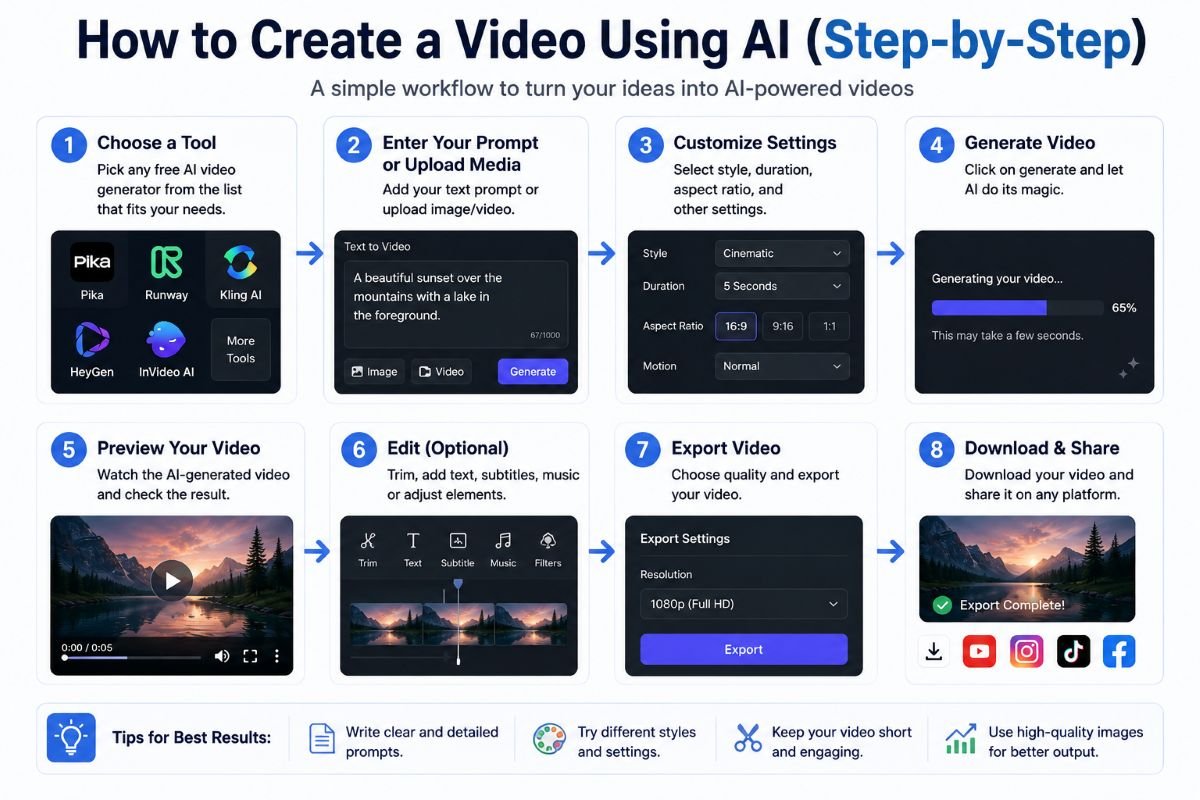
You do not need advanced video editing skills to create a video with AI. With the right tool, you can start with a simple idea, give the AI a clear prompt, and then edit the result.
The exact steps can be slightly different for each tool, but the basic process is almost the same.
Step 1: Choose an AI Video Generator
First, choose an AI video generator that matches your needs.
For example:
- Use Kling AI for realistic or cinematic scenes.
- Use Pika or PixVerse for short creative clips.
- Use CapCut AI for social media videos and editing.
- Use HeyGen for AI avatar videos.
If you are a beginner, start with one tool instead of trying many tools at once. Also, check its current free limits before generating your video.
Step 2: Decide What Video You Want
Before opening the AI tool, decide what you want to create.
Think about:
- What is the main subject?
- What is happening in the video?
- Where is the scene?
- What style do you want?
- How long should the clip be?
- Where will you use the video?
For example, instead of simply saying “Create a car video,” decide on a more specific idea:
“Create a short video of a red sports car driving on a mountain road at sunset.”
A clear idea usually makes it easier to write a useful prompt.
Step 3: Write a Simple AI Video Prompt
Now turn your idea into a prompt. You do not need complicated English.
A useful prompt can include the subject, action, location, camera movement, lighting, and style.
For example:
“A red sports car driving on a mountain road at sunset, cinematic style, slow camera movement, realistic lighting.”
If you want to create a product video, you could write:
“A modern smartwatch on a clean white table, soft studio lighting, slow camera movement, realistic product advertisement.”
Try to describe what you want the AI to show instead of writing a very short or unclear prompt.
Step 4: Generate the Video
Enter your prompt into the selected tool and start the generation.
Some tools may ask you to choose settings such as:
- Video duration
- Aspect ratio
- Resolution
- Video model
- Visual style
If you are using a free plan, choose settings that are available without payment.
The AI will then process your request and create a video. Depending on the tool, this can take a few seconds or several minutes.
Step 5: Review and Improve the Result
Do not expect the first generation to be perfect.
Watch the video and check:
- Does the subject look correct?
- Is the movement natural?
- Does the scene match your prompt?
- Are there strange objects or movements?
- Is the camera movement what you wanted?
If something looks wrong, improve your prompt and generate another version.
For example, if the car in your video is not moving correctly, you could make the prompt more specific:
“A red sports car smoothly driving forward on a mountain road, realistic wheels and natural camera movement, sunset lighting.”
Small changes to your prompt can sometimes produce a better result.
Step 6: Edit and Export the Video
Once you are happy with the generated clip, you can make final changes.
Depending on the tool, you may be able to:
- Add text
- Add music
- Add voiceovers
- Add captions
- Cut unwanted parts
- Combine multiple clips
- Change the video size
For example, you could generate a product clip with Kling AI and then use CapCut to add the product name, background music, and a short call to action.
Finally, export or download the video using the options available in the free plan.
Before publishing it, check the final video for quality, watermark, resolution, and any usage restrictions.
A Simple AI Video Workflow
You can remember the whole process like this:
Choose a tool → Plan your video → Write a prompt → Generate → Review → Edit → Export
You can use this workflow for YouTube videos, Shorts, Reels, product videos, educational content, and many other types of AI-generated videos.
How to Write Better AI Video Prompts
A good prompt can help an AI video generator create a video that is closer to your idea. You do not need difficult English or very long prompts. The most important thing is to clearly describe what you want to see.
A useful AI video prompt can include these seven parts:
Subject + Action + Setting + Camera + Lighting + Style + Duration
You do not always need to use all seven parts. Add the details that are important for your video.
1. Subject
The subject is the main person, object, animal, or thing you want to show.
For example:
“A golden retriever”
or
“A young woman wearing a blue jacket”
2. Action
The action explains what the subject is doing.
For example:
“A golden retriever running through a field.”
This is more useful than simply saying “a golden retriever.”
3. Setting
The setting tells the AI where the scene takes place.
For example:
“A golden retriever running through a green field near a small lake.”
4. Camera
You can describe how you want the camera to move or view the scene.
Examples include:
- Slow camera movement
- Close-up shot
- Wide shot
- Camera follows the subject
- Slow zoom in
For example:
“A golden retriever running through a green field, with the camera slowly following it.”
5. Lighting
Lighting can change the mood and look of your video.
You can use simple descriptions such as:
- Soft morning light
- Bright daylight
- Warm sunset light
- Dark cinematic lighting
- Soft studio lighting
For example:
“A golden retriever running through a green field in warm sunset light.”
6. Style
The style tells the AI how you want the video to look.
For example:
- Realistic
- Cinematic
- Animated
- Documentary
- Product advertisement
- 3D animation
You can add a style like:
“A golden retriever running through a green field in warm sunset light, realistic cinematic style.”
7. Duration
If the tool supports duration instructions, tell it how long you want the clip to be.
For example:
“Create a 5-second video of a golden retriever running through a green field in warm sunset light.”
The available duration may depend on the AI video generator and its current plan.
Example 1: Nature Video
A simple prompt:
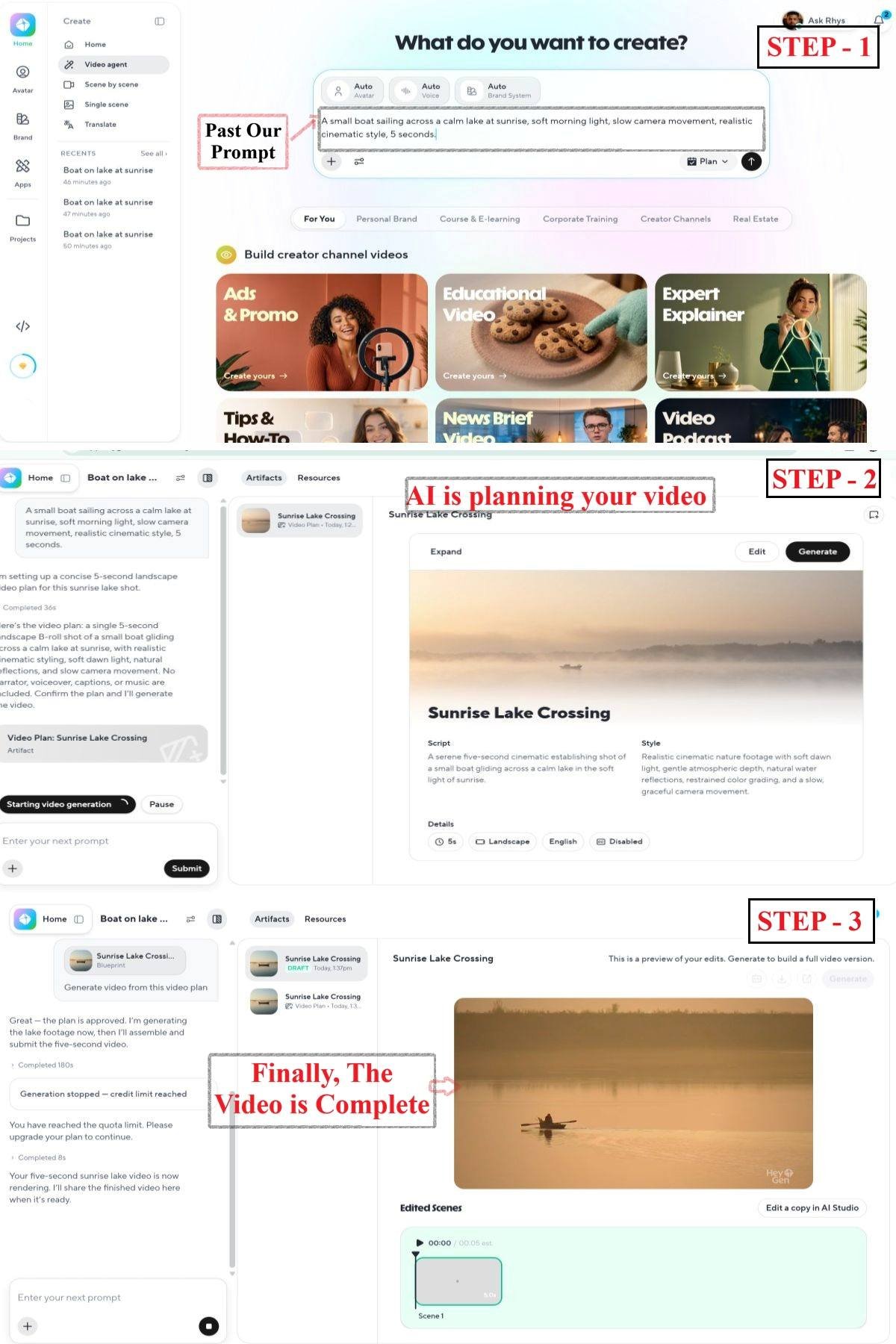
“A small boat sailing across a calm lake at sunrise, soft morning light, slow camera movement, realistic cinematic style, 5 seconds.”
This prompt tells the AI the subject, action, setting, lighting, camera movement, style, and duration.
Example 2: Product Video
“A modern smartwatch on a clean white table, the camera slowly moves around the watch, soft studio lighting, realistic product advertisement style, 5 seconds.”
This can be useful when creating a short product clip for a website or social media.
Example 3: Social Media Video
“A young person drinking coffee in a modern cafe, smiling and looking outside the window, warm natural light, smooth close-up camera movement, realistic social media video style, 6 seconds.”
This type of prompt can help create a short visual scene for a Reel or Short.
Simple Tips for Better Prompts
Keep these tips in mind:
- Be clear about the main subject.
- Describe the action instead of only naming the subject.
- Add important details about the location.
- Mention camera movement when it matters.
- Use simple lighting and style descriptions.
- Do not add unnecessary details.
- If the first result is poor, change one or two parts of the prompt and try again.
You do not need to write a perfect prompt on the first attempt. Generate, review, improve, and try again is often the easiest way to get a better result.
Common Problems With Free AI Video Generators
Free AI video generators are useful for testing ideas and learning how AI video creation works. However, free plans often come with some limitations.
Knowing these problems before you start can help you choose the right tool and avoid surprises.
Limited Free Credits
Many AI video generators give you only a limited number of free credits. Every video generation can use some of your credits.
For example, if you have 50 credits and one video costs 10 credits, you may get only five generations.
This can become a problem if you need many attempts to get the result you want.
What to do: Check how many credits you get, how quickly they are used, and whether they renew.
Watermarks
Some free tools add their logo or watermark to generated videos.
What to do: Check the free plan’s watermark policy before creating important videos.
Short Video Duration
Free plans may limit how long each generated video can be.
For example, a tool may generate only a short clip instead of a full one-minute scene.
This is usually not a big problem for Shorts or Reels. However, it can be difficult if you want to create longer YouTube content.
What to do: Check the maximum video length and consider combining several short clips when needed.
Lower Resolution
Some tools limit the video resolution available to free users.
For example, a free plan may allow you to generate a video but restrict the download to a lower resolution. Higher-quality exports may require a paid plan.
This can matter if you want to use the video on a large screen or in a professional project.
What to do: Check the actual export resolution available on the free plan before generating your final video.
Inconsistent Results
AI does not always create exactly what you describe.
You may ask for a person walking naturally, but the movement may look strange. An object may also change shape or appear differently between frames.
For example, if you ask AI to create a video of a person holding a cup, the cup or the person’s hands may look unusual in some frames.
What to do: Use clear prompts, keep the scene simple, and generate more than one version when necessary.
Slow Generation
AI video generation can take time, especially when many people are using the same service.
For example, a video that normally takes a minute to generate may take longer during busy periods.
Some free plans may also place users in a lower-priority queue.
What to do: Be patient, try again later, or choose a different tool when you need faster results.
Limited Commercial Rights
A free plan may not always give you the same usage rights as a paid plan.
For example, you may be allowed to create a video for personal use but have restrictions on using it for an advertisement, client project, or other commercial purpose.
The rules are different for each tool and can change over time.
What to do: Always read the current usage or licensing terms before using a free AI-generated video to make money or for a business project.
What Should You Expect From a Free AI Video Generator?
Free AI video tools are excellent for learning, testing ideas, and creating small projects, but they may not be ideal for every professional need.
If you understand the limits before you start, you can avoid wasting credits and choose a tool that fits your project.
The goal is not to find a tool with zero limitations. Instead, find a tool whose free limitations are acceptable for what you want to create.
Common Mistakes to Avoid When Using AI Video Tools
AI video tools can save time and make video creation easier, but beginners can still make some common mistakes. Avoiding these mistakes can help you get better results and use free AI video generators more effectively.
Choosing a Tool Only Because It Says “Free”
One of the biggest mistakes is choosing a tool only because it offers a free plan.
A free tool may have very few credits, a watermark, short video limits, or low-resolution downloads.
For example, Tool A may offer more free credits, while Tool B offers fewer credits but better video quality and cleaner exports. The better choice depends on your needs.
Better approach: Check the free credits, quality, watermark, video length, and other important limits before choosing a tool.
Ignoring Watermark Restrictions
Some free AI video tools add a watermark to your videos.
If you are creating a video just to test an idea, this may not matter. But if you want to publish a professional product video, a visible watermark may not be suitable.
Better approach: Check the watermark rules before generating your final video.
Using Very Vague Prompts
A short or unclear prompt may not give the AI enough information.
For example:
“Make a nice car video.”
This does not tell the AI what the car is doing, where it is, or how the scene should look.
A better prompt could be:
“A black sports car driving on a coastal road at sunset, realistic style, smooth camera movement.”
The second prompt gives the AI much more direction.
Expecting One Prompt to Create a Perfect Video
AI video generation is not always perfect on the first try.
You may get strange movements, incorrect objects, or a scene that does not match your idea.
For example, you might ask for a person walking while holding a phone, but the hands or phone may look unusual.
Better approach: Review the result, improve your prompt, and generate another version when needed.
Not Checking Commercial-Use Rules
Do not assume that every AI-generated video can be used for business just because it was created for free.
For example, if you create a video for a paid advertisement, client project, or monetized website, you should check whether the tool’s current terms allow commercial use.
Better approach: Read the current usage or licensing rules before using important content commercially.
Using Copyrighted Material Without Permission
AI tools may allow you to upload images, music, videos, or other files. But you still need the right to use those materials.
For example, downloading a popular song from the internet and adding it to an AI-generated video does not automatically give you permission to use the song.
The same applies to images, logos, video clips, and other copyrighted content.
Better approach: Use your own content, properly licensed material, or content that you have permission to use.
Generating Long Videos Without Planning Scenes
Trying to create a long video in one generation can lead to poor results and wasted credits.
For example, instead of asking an AI tool to create a complete five-minute story in one request, divide the story into smaller scenes.
You could plan it like this:
- Opening scene
- Main character introduction
- Main action
- Important event
- Ending scene
Then create the clips separately and combine them during editing.
Better approach: Plan longer videos as a series of short scenes before generating them.
A Simple Rule to Remember
Before generating an important video, ask yourself:
“Do I know what I want, what the tool allows, and how I can use the final video?”
If the answer is yes, you are much more likely to avoid common problems and get better results from your AI video tool.
Free AI Video Generator vs Traditional Video Editing
AI video generators and traditional video editing tools both help you create videos, but they work in different ways.
With an AI video generator, you can describe what you want and let AI create part of the video for you. With traditional video editing, you usually create the video yourself by recording, importing, cutting, arranging, and editing different elements.
Neither option is always better. The right choice depends on your project, skills, time, and budget.
Quick Comparison
| Feature | AI Video Generator | Traditional Editing |
|---|---|---|
| Beginner friendly | Usually easier to start | May take more practice |
| Speed | Fast for creating short scenes | Can take more time |
| Creative control | Depends on the AI tool | Usually very high |
| Cost | Free plans may be available | Free and paid editors available |
| Learning curve | Lower for basic tasks | Higher for advanced editing |
| Best use case | AI scenes, short clips, ideas | Full editing and precise control |
Beginner Friendly
AI video generators can be easier for beginners because you can start with a simple prompt.
For example, you could write:
“A small boat moving across a lake at sunset.”
The AI can create a video scene from the description.
Traditional editing usually requires you to understand things such as timelines, clips, transitions, audio, and effects.
However, modern editing apps have also become much easier to use, so beginners can learn basic editing without much difficulty.
Speed
AI can save time when you need to create a new visual scene.
For example, instead of filming a fictional city scene yourself, you can describe the scene and generate a short clip with an AI tool.
Traditional editing can be faster when you already have the footage you need. You can simply cut the clips, add text, and export the video.
So, AI is not always faster. It depends on what you are trying to create.
Creative Control
Traditional editing usually gives you more direct control.
You can choose exactly where a clip starts and ends, adjust audio, change colors, move text, add effects, and arrange scenes exactly as you want.
AI video generation gives you less direct control over some details. You describe the result, and the AI decides how to create it.
For example, if you need a very specific camera movement or a precise edit at a certain second, traditional editing may give you more control.
Cost
Both options can be used for free, but their free plans work differently.
A free AI video generator may give you limited credits, lower resolution, or watermarks.
Traditional video editors may offer free editing features without charging for every export, but some advanced features may require payment.
For example, a beginner could use a free AI tool to generate a short scene and a free editing app to combine it with other clips.
Learning Curve
AI tools can have a lower learning curve for simple video creation because you can start with prompts.
Traditional editing takes more time to learn if you want to use advanced features.
However, learning basic video editing is still useful. It gives you more control over the final result and allows you to improve AI-generated clips.
Best Use Case
AI video generators are useful when you want to:
- Create new visual scenes
- Turn text into short videos
- Animate images
- Test creative ideas
- Create quick social media clips
Traditional editing is useful when you want to:
- Edit recorded footage
- Create longer videos
- Control every part of the timeline
- Add precise cuts and transitions
- Combine video, audio, images, and graphics
The Best Approach: Use Both
You do not always have to choose between AI and traditional editing.
A hybrid workflow can give you the benefits of both.
For example:
- Generate a short product scene with an AI video generator.
- Import the clip into a video editor.
- Remove unwanted parts.
- Add your logo and text.
- Add music or voiceover.
- Add captions.
- Export the final video.
This approach can be useful for YouTube videos, product content, Shorts, Reels, and educational videos.
Our Take
If your main goal is to create new video scenes quickly, an AI video generator can be very useful.
If you want precise control over an existing video, traditional editing is usually the better choice.
For many creators, the best option is not AI vs traditional editing, but AI + traditional editing. AI can help create the difficult or time-consuming visual parts, while an editor can help you turn those clips into a polished final video.
Frequently Asked Questions
Here are some common questions readers ask about free AI video generators. Free plans and usage rules can change, so always check the tool’s current official terms before using it for an important project.
What is the best free AI video generator?
There is no single best tool for everyone.
Your choice depends on what you want to create. For example, Pika can be useful for short creative clips, Runway for AI-generated visual work, and HeyGen for AI avatar videos. Pika currently offers 80 monthly video credits on its Free plan, while Runway’s Free plan includes a one-time 125 credits.
The best option is the one that gives you the features you need within its free limits.
Can I generate AI videos for free?
Yes. Many AI video tools offer free plans or free credits.
However, “free” does not always mean unlimited. A free plan may have limits on credits, video length, resolution, models, or watermarks.
For example, Runway gives Free users a one-time 125-credit allocation that does not renew. Pika currently provides 80 monthly video credits on its Free plan.
Which AI video generator is free without a watermark?
Some tools offer watermark-free downloads on their free plans, but you should check the current plan before relying on this.
For example, Pika’s current Free plan says that users can download videos without a watermark.
Other tools may include a watermark on free exports. For example, Runway says that videos generated on its Free plan include a Runway watermark.
Can AI generate a video from text?
Yes. Many AI video generators support text-to-video.
You can describe a scene in a prompt, such as:
“A small boat sailing across a calm lake at sunrise, realistic cinematic style.”
The AI can then use your description to create a video clip. The exact video length, quality, and available models depend on the tool and plan.
Can I create a video from an image using AI?
Yes. This is called image-to-video.
You can upload an image and tell the AI how you want it to move.
For example, you could upload a picture of a car and ask:
“Animate the car driving slowly along a mountain road at sunset.”
The result will depend on the tool, image quality, model, and available settings. Pika’s current Free plan, for example, includes image-to-video features with specific credit and resolution limits.
Are free AI-generated videos copyright-free?
Not necessarily.
The fact that you generated a video with AI does not automatically mean that everything in the video is free from copyright or other legal restrictions.
You should also consider:
- The AI tool’s usage terms
- The rights to uploaded images, music, or videos
- Third-party characters, logos, or brands
- Copyright laws in your country
For example, if you upload a copyrighted image that you do not have permission to use, generating a new video from it does not automatically give you permission to use the original material.
Can I use AI-generated videos on YouTube?
Often, yes, but you should check the tool’s usage rules and YouTube’s current policies.
For example, Runway states that users retain rights to content they generate and can use it for monetized or non-monetized YouTube uploads.
However, using AI does not automatically make a video suitable for monetization. Your video should still provide original value and follow YouTube’s current rules.
Can I use free AI-generated videos commercially?
It depends on the specific tool and plan.
Do not assume that a free AI video can automatically be used for advertisements, client work, or other commercial projects.
For example, Runway currently says its users can use generated content commercially, including product advertising and monetized YouTube videos.
HeyGen’s commercial-use rules can depend on the specific feature and plan, so check the current terms before using Free-plan content commercially.
Always read the current licensing terms before using a free-generated video commercially.
How long can a free AI video be?
There is no single answer because every tool has different limits.
For example, HeyGen’s current Free plan allows up to 3 videos per month, with each video up to 1 minute.
Other tools may offer only short AI-generated clips or limit duration based on the model and credits available.
If you need a longer video, you can often create several short scenes and combine them in a video editor.
Which AI video generator is best for beginners?
For beginners, an easy-to-use tool with simple controls and a clear free plan can be a good starting point.
CapCut AI can be useful for beginners who want AI features together with normal video editing. Pika can also be a good option for experimenting with short AI-generated clips. The best choice still depends on the type of video you want to make.
If you are new to AI video creation, start with one tool, make a small test video, and learn how its free limits work before moving to more advanced tools.
Quick FAQ Takeaway
Before choosing a free AI video generator, ask these four questions:
What can I create? → What does the free plan limit? → Can I use the result where I want? → Does the final video meet my quality needs?
This simple check can help you avoid most surprises with free AI video tools.
Conclusion
A free AI video generator can be a great way to start creating videos without expensive software or advanced editing skills. But remember that free plans often come with limits such as credits, watermarks, shorter videos, or lower resolution.
The best approach is to start with one tool, create a small test video, and check the result carefully. Use clear prompts, review every AI-generated clip, and always check the current usage and commercial rights before publishing important content.
I don’t just list free AI video tools. I explain their actual free limits, show what each tool is best for, explain how to use them, teach better prompts, and help readers choose the right tool.
If you are new to AI video creation, keep learning and testing different tools. UseAiLearn is here to help you understand AI tools through simple, beginner-friendly tutorials.
Start small, practice regularly, and choose the tool that works best for your own needs.